Supermetrics for Microsoft Copilot
Connect Google Business Profile to Microsoft Copilot — Local Search Analytics in Teams

Track your Google Business Profile location performance inside Microsoft Teams. Ask Copilot about search visibility, customer actions, reviews, and photo engagement across all your locations — share local marketing insights in Microsoft 365.
Why Connect Google Business Profile to Microsoft Copilot?
Analyze your Google Business data in Microsoft Copilot with natural language — just ask what you want to know.
- If you manage multiple locations, checking Google Business Profile for each one is tedious. Ask Copilot to summarize search visibility, phone calls, direction requests, and review scores across all locations in a single Teams message.
- Copilot surfaces review data so you can identify locations with declining ratings, high negative feedback, or low review volume. Share review health reports in your Teams channel to coordinate local response efforts.
- Supermetrics connects GMB alongside digital ad platforms. Ask Copilot how local search visibility correlates with paid campaign activity, and whether ad spend drives more store visits and phone calls.
How to Connect Google Business Profile to Microsoft Copilot
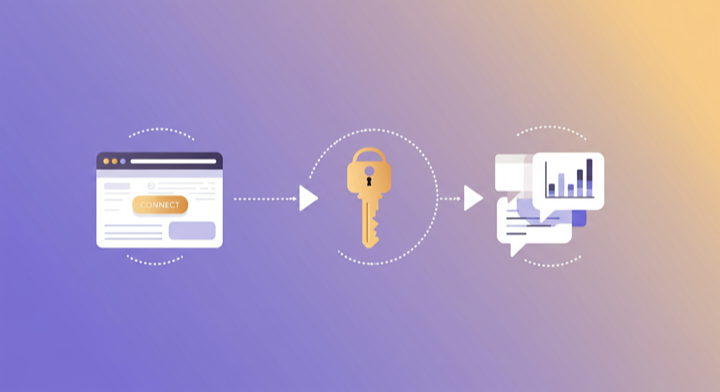
Three steps. Under two minutes. Zero code.
- 1
Deploy Supermetrics agent in Teams
Open Microsoft Copilot in Teams, search for the Supermetrics agent in the agent store, and add it to your workspace.
- 2
Authorize your data source
Authorize your account when prompted — a quick sign-in to connect your data source.
- 3
Ask questions in Teams chat
Start a conversation with the Supermetrics agent in Teams and ask anything about your marketing data in plain English.
Example Microsoft Copilot Prompts for Google Business Profile
Copy these prompts or use them as inspiration. Microsoft Copilot understands natural language — just ask what you want to know.
What Google Business Profile Data Can You Analyze in Microsoft Copilot?
Supermetrics gives Microsoft Copilot access to your full Google Business reporting data — metrics and dimensions you already know from the Google Business interface.
Key Metrics
- Search impressions
- Views (total)
- Views (Maps)
- Views (Search)
- Actions (total)
- Actions (website)
- Actions (phone)
- Actions (driving directions)
- Review count
- Average star rating
- Photo views (total)
- Post views
Key Dimensions
- Location name
- Location address locality
- Location category name
- Location status
- Location store code
- Review star rating
- Review comment
- Post topic type
- Search keywords
View all Google Business Profile fields, metrics, and dimensions →
Resources & Guides
How to make marketing data AI-ready
Why Supermetrics for Microsoft Copilot?
The only native Microsoft Copilot connector with 170+ data sources, campaign management, and enterprise-grade security.

Native Microsoft Copilot Connector
One-click setup directly in Microsoft Copilot. No plugins to install, no terminal commands, no technical skills required. The first marketing data platform with native AI integrations.

170+ Data Sources
Connect Google Business Profile alongside 170+ other platforms through a single integration. Cross-channel analysis in one conversation.

Cross-Channel Analysis
Query Google Business Profile alongside every other marketing platform in a single conversation. No data exports, no tab switching.

Enterprise Security
SOC 2 Type II certified. GDPR compliant. OAuth authentication. Your data is encrypted at rest and in transit.

Real-Time Data
No stale exports. Supermetrics pulls fresh data from Google Business Profile every time you ask Microsoft Copilot a question. Always current, always accurate.

Unsampled Data
Get your complete Google Business Profile dataset without sampling. Every session, every keyword, every page — full-fidelity data for accurate analysis.
Frequently Asked Questions
- Deploy the Supermetrics agent from the Microsoft 365 Copilot agent store. Once added, authorize Google Business Profile as a data source. You can then query your Google Business Profile data in natural language directly inside Microsoft Teams chat — no exports, no dashboards, no context switching.
- Yes. Supermetrics uses OAuth-based authentication with your Google Business Profile credentials encrypted at rest and in transit. Data is processed within the Microsoft 365 trust boundary and only fetched as needed to serve your queries. Supermetrics is SOC 2 Type II certified and GDPR compliant.
- Absolutely. Supermetrics connects 170+ data sources to Microsoft Copilot through a single agent. You can ask Copilot to compare Google Business Profile performance against data from other platforms in the same Teams conversation — cross-referencing ad spend with revenue, web analytics, or CRM data.
- You can access all standard Google Business Profile reporting metrics through Supermetrics, including Search impressions, Views (total), Views (Maps), Views (Search), Actions (total), and more. Both metrics and dimensions are available, so you can slice data by campaign, date, audience, and other dimensions.
- No. Setup takes under two minutes with zero coding. The Supermetrics agent handles all API connections, authentication, and data formatting behind the scenes. Just deploy the agent in Teams, authorize your data source, and start asking questions in plain English.
- Yes. Supermetrics pulls data for all locations in your Google Business Profile account. Ask Copilot to compare performance across locations or filter to specific stores.
- Yes. Review count, average star rating, and review comments are available. You can monitor review health and identify locations needing attention.
Also Connect to Microsoft Copilot


Ready to Connect Google Business Profile to Microsoft Copilot?
Join 200,000+ companies that use Supermetrics to connect their marketing data. Set up in under two minutes.