Point at it, or format it yourself
20 October 2026 · Supermetrics Studio
In edit mode, you can now drag over part of a board or slide to show SuperAI what to change, or select text and format it yourself.
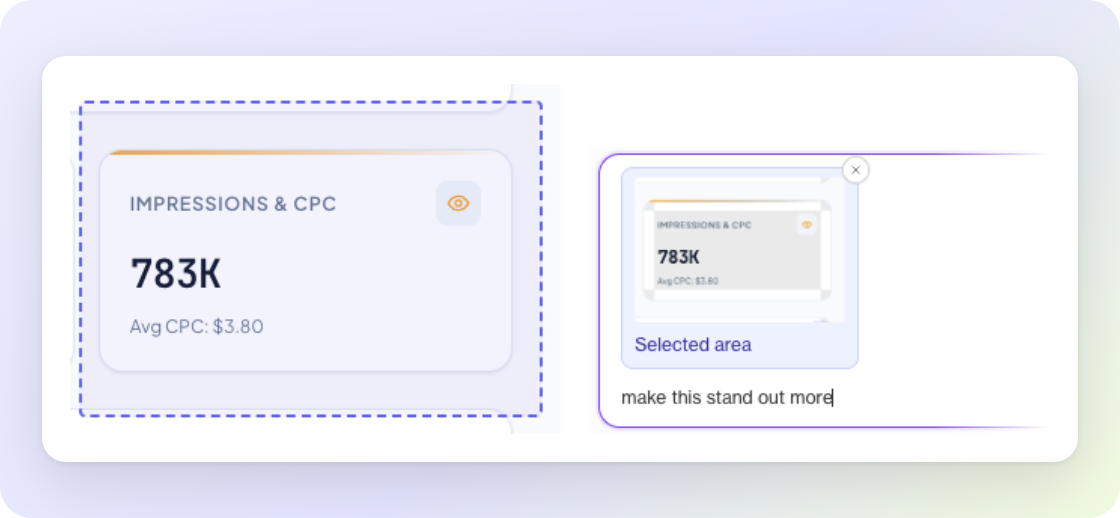
Telling SuperAI which part of a board you mean used to take a sentence or two. “The second KPI card on the Paid social tab” works, but on a busy board with several tabs or slides it’s easy to be misunderstood. For small changes, like making a heading bold, writing a prompt was more effort than the change itself.
Select an area and tell SuperAI what to change
In edit mode, click and drag on an empty spot on your board or slide. A dashed box appears, and a Selected area chip with a small preview shows up in the chat. Write what you want, like “make this stand out more”, and send it. SuperAI knows which part you mean, including the tab or slide you were looking at.
Nothing is sent until you press send. To clear the selection, click the × on the chip or press Esc, and click the chip to jump back to the area you picked.
Start the drag in empty space. Dragging over text still selects the text, and charts, buttons and maps work as they always have.
Format text without a prompt
Select text in edit mode and a toolbar appears above it, with bold, italic, underline, font, size, text and background colour, and links. Colours come from your board’s theme, your recent colours or any colour you pick, and the fonts are the same ones you see in the Design tab.
Format a few words to style just those words, or put your cursor in a heading or paragraph to style all of it. Live numbers can be restyled too: change their colour, font and size, and the number itself keeps coming from your data.
Changes show straight away, you can undo any of them, and they’re kept when you save.
