Build a board from a Google Sheet or a file
8 October 2026 · Supermetrics Studio
Paste a Google Sheets link and Supermetrics Studio builds a board that stays connected to the sheet. You can also drop in an Excel, CSV, TSV, JSON or XML file.
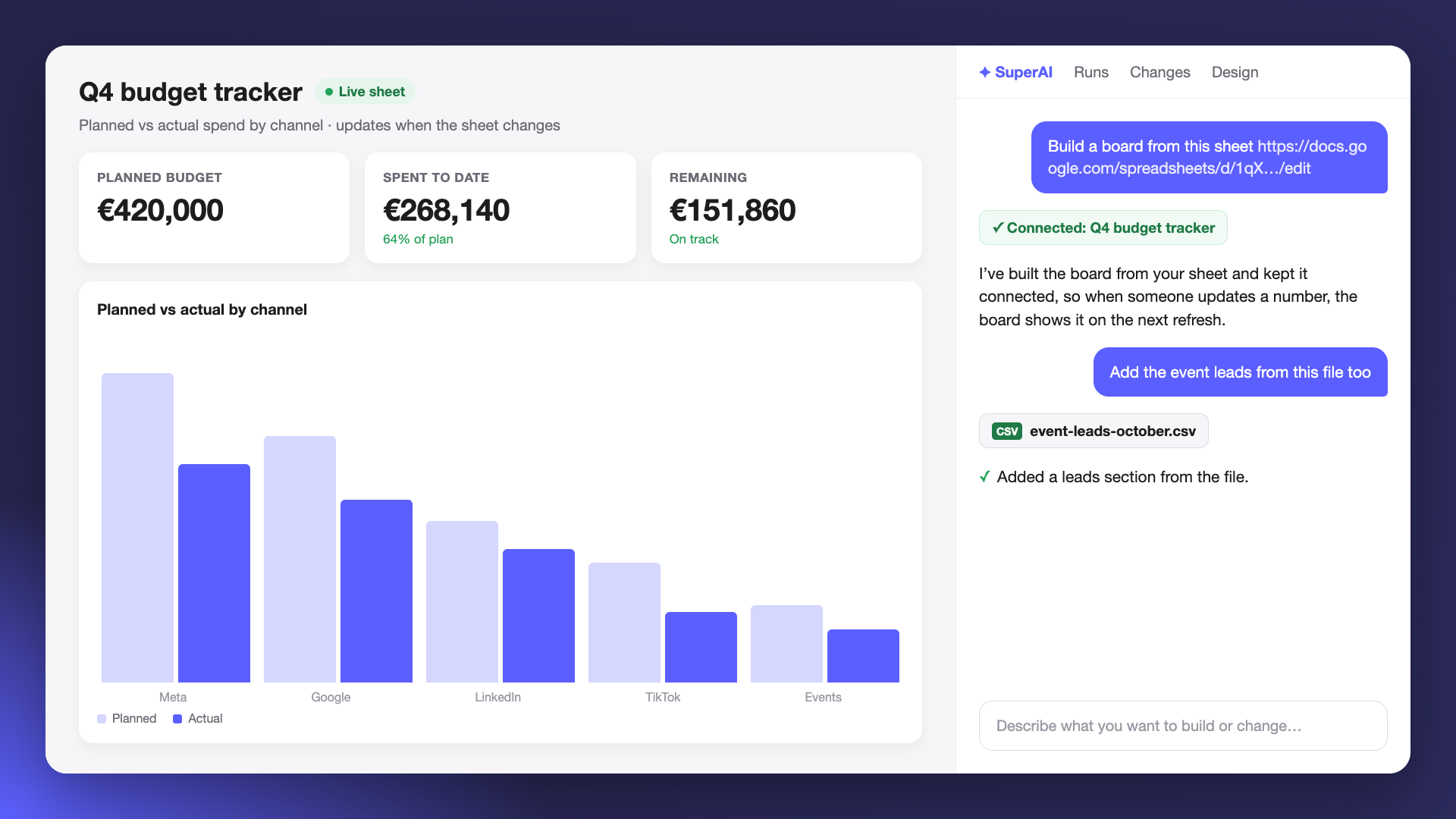
Some of the numbers you report on never come through a connector: offline sales, a budget tracker, event leads, an export from a tool we don’t connect to. Until now, those stayed out of your boards. Now SuperAI can build a board from them, with KPIs, charts and tables, the same way it does from your connected data sources.
Connect a Google Sheet
Paste the sheet’s link into the chat and connect your Google account. SuperAI builds the board from the sheet and keeps a live connection to it, so when someone updates a number in the sheet, the board shows it on the next refresh.
The board owner decides which spreadsheets each board can read, in the board’s Settings.
Sheets built with the Supermetrics add-on
If your sheet was built with the Supermetrics add-on for Google Sheets, you can keep the live link to the sheet, or ask SuperAI to rebuild its queries in Supermetrics Studio so the board pulls straight from your data sources.
Drop in a file
Drag an Excel, CSV, TSV, JSON or XML file onto the new board card or into the chat. Ask SuperAI to build a board from it, or to add the data to a board you already have. Files can be up to 10 MB.
A file doesn’t update by itself, so for numbers that change often, a Google Sheet is the better fit.
